While simple label machines have been around for a long time, easy-to-use thermal label printers have relatively recently entered the consumer market. Whether you need price tags for your garage sale, name tags for an event, or just want to label stuff around the house, the label printer and label maker from Munbyn may be the solution you’ve been looking for.
Munbyn sent me two products to review: the RealWriter 402 Bluetooth Thermal Label Printer and the FM226 Label Maker.
RealWriter Thermal Label Printer

The Thermal Label Printer is compact: 4.9″ deep by 9.76″ wide by 6.5″ high, so can be easily stored just about anywhere. It can be powered by the included standard DC power cord.
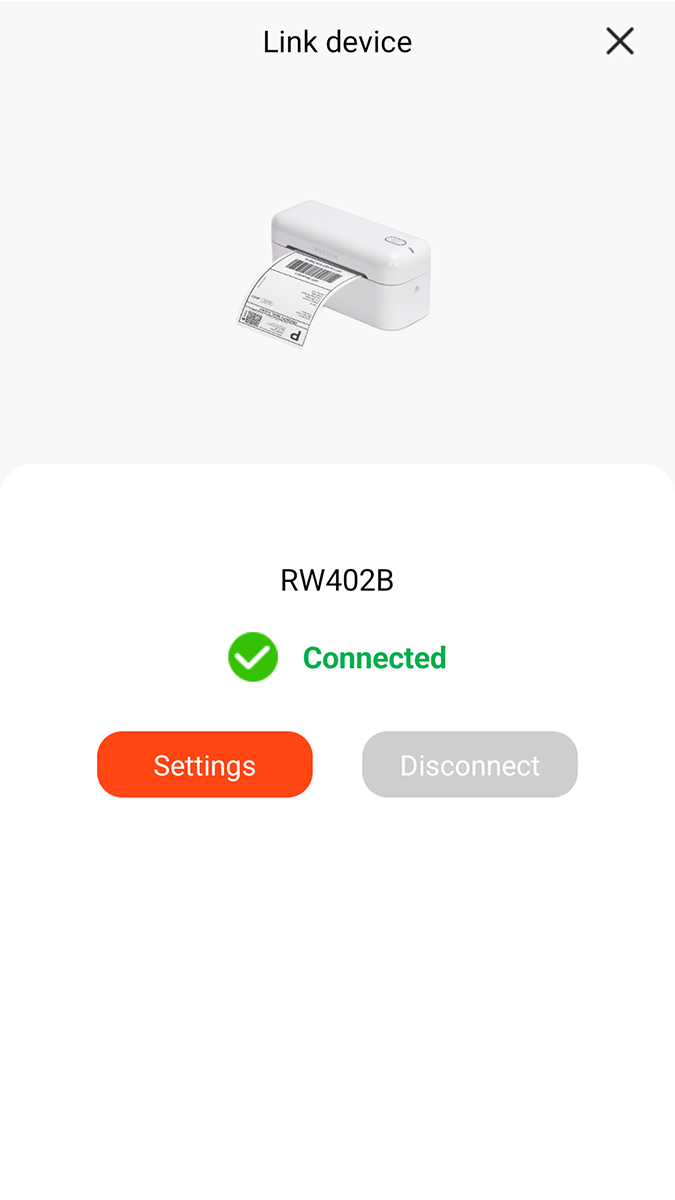
You can connect the printer to your computer via USB-C or Bluetooth, or to your phone via Bluetooth. I found connecting to be absolutely effortless.
The printer accepts a wide range of thermal lables from Munbyn, and will automatically detect and adjust to the size of paper being fed to it. It supports labels up to 4×6, and is extremely fast (72ppm) and very quiet.

Most of the work of designing the labels can be done either on a desktop computer or a mobile device. I tested using the later. The official Munbyn app was able to very easily connect to the printer once it was powered on. It then provided a wide range of ready-made labels, each with a convenient link to purchase the proper paper if needed. Most of the labels had some kind of customization options, including the ability to add things like barcodes and QR codes. Once you’re done customizing, there’s a single button to push to print.
You can also create lables entirely from scratch, by selecting the appropriate paper size and then adding text, graphics, scan codes, or anything else. This process is likewise very easy and provides a lot of flexibility in design.

The output of the lables is very nice as well, particularly for something that can go from “having an idea” to “printed label” in just a few minutes.

Overall, I found everything about the label printer to be just fantastic. There are almost infinite possibilities so what you might be able to do with this, and for a device that is only $129 (although you can use our GeekDad discount code to bring that down to $99), it’s a worthwhile investment for just about everyone.
One particularly geeky use: my wife and I have been reorganizing our garage, using those black 27 gallon containers from Costco. As we’ve loaded them up, I’ve been tracking what we’re putting in them on a Google spreadsheet. Then, I simply get the link for the sheet, and print a label that includes not only a general description of what’s in the container, but also a QR code that links to the spreadsheet with the detailed inventory.
Funmaker FN226 Label Maker

Smaller and more efficent than than Thermal Label Printer, the FN226 Label Maker is also more specific task-focused.
Like its bigger cousin, the FN226 is nice and compact, coming in at only 5.23″ deep x 3.87″ wide x 2.57″ high. It’s also as easy to use via the same app, with the same templates and customization options. It’s only big limitation is that it takes only a single size of paper–2 x 1.2 inch labels–although in some ways that again only serves to futher simplify the process.

The very big advantage the FN226 has over the Thermal Label Printer is that it is entirely wireless. You charge it via USB-C, and then can take it anywhere. According to the documentation, it can print for 8 hours or 4000 labels on a single charge. (I’ll admit I did not spend nearly that amount of time testing it to know if this was accurate. What I can say that I was able to use it a lot and didn’t worry about the power.)
The company also provided a discount link for our readers to buy this device on Amazon. Note that both discounts expire on March 31.
One Note on the App
As I noted above, both printers use the Munbyn app. It really is intuitive and nicely designed and very easy to use. However, it also has one big, quite significant limitation: it can only be connected to a single printer at once. In order to switch between the two devices I was sent for this review, I had to remove one printer and then add the second, To switch back, I had to remove that printer and re-add the first.
However, I don’t know how likely it is that regular customers would own both, so perhaps this isn’t that big of an issue in the real world. And, the app does make connecting extremely easy, so it was also more of a minor inconvenience than a real show-stopping issue.
Final Verdict
Despite that small issue with the app, I was quite pleased with both of these devices. I already mentioned one application I’ve found for them, and I look forward to coming up with a lot more creative uses for both.