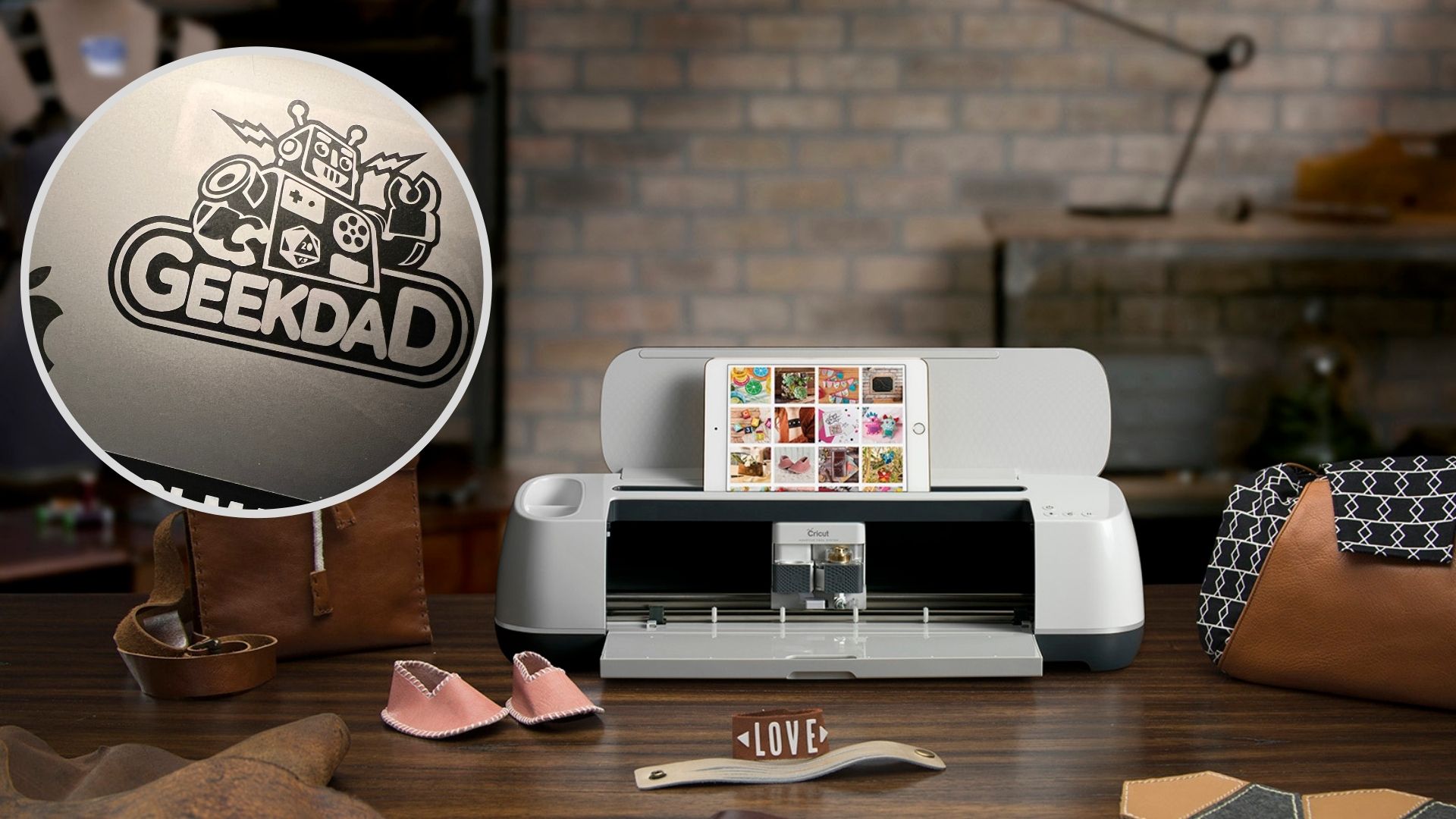
Cricut cutting machines have been popular among the GeekFamily writers (and crafters everywhere) for years, and the Cricut Maker 3 device is smarter and faster than any of the earlier models. Able to cut paper, felt, vinyl, fabric, leather, matboard, and wood – the new Cricut Maker 3 has one incredible upgrade that makes it a game-changer: special “Smart Materials” feed directly into the machine so you can make single cuts up to 12 feet, removing the needed cutting mat that limited the size and complexity of projects from earlier machines.
We were sent a Cricut Maker 3 and related supplies for the purpose of this review; all opinions are (of course) our own. Even with the very first calibration cut, we were able to see the improvements in the Maker 3 – after loading a sheet of “Smart Vinyl”, a complex cut was done in under a minute and the process of “weeding” (don’t worry, I needed to look it up too – that’s the removal of all the excess material in a design you don’t want or need) was incredibly easy.
We also found that Cricut enthusiasts have a tremendous audience on YouTube and this provided the all the advice and inspiration we needed to get started.
Before working on designing our own projects, we sampled some of more than 150,000 images, fonts, and project ideas available in the free Design Space app (access to that library is available for a monthly fee). We jumped in with vinyl applications on a few travel mugs to personalize for my wife and I. Eventually, we worked our way up to a custom designed iron-on that we applied to a canvas bag from last summer’s picnics using our home iron. The graphic adhered better in some places than in others due to the irregular heat from a standard iron… asking for some help on the Cricut forums suggested that we should have:
- Checked to make sure that the steam setting was off.
- Pre-heated the material on low setting for 5 seconds (this is to remove any moisture and help gain better adhesion).
- Ironed the back of the material for another 15 seconds after adhering the iron-on for 30 seconds.
Our imperfect first iron-on attempt led us to investigate the Cricut EasyPress 2 — designed to provide even pressure and heat for perfect transfers, even able to adjust heat/time to apply different materials to the products of your choice. We re-tried the same graphic with the EasyPress 2 and could not be more thrilled with the perfection of the result.
Everything Cricut is available direct or through their Amazon store (direct link). We’ve already made labels and even a car decal and have lots more projects lined up for the next few weeks.