
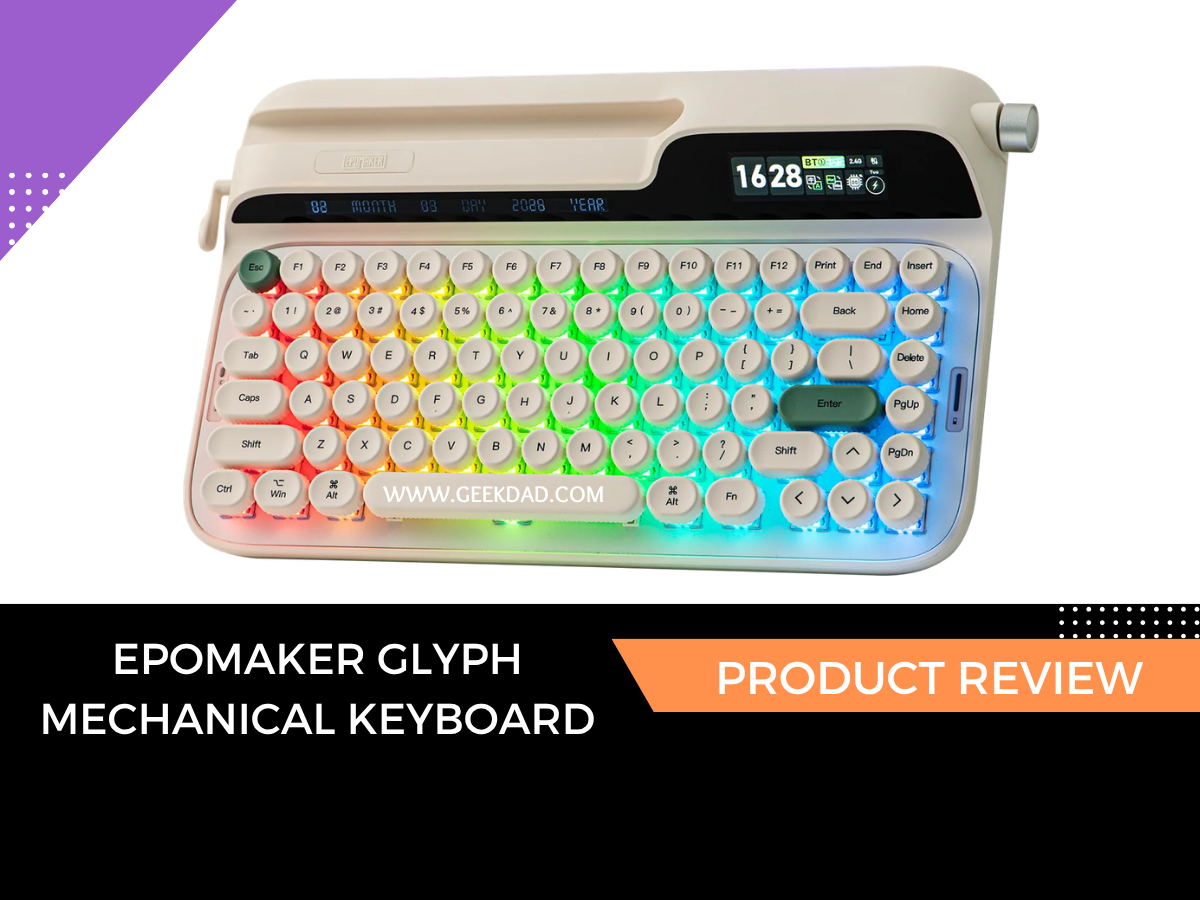
This month’s keyboard highlight is the Epomaker Glyph, a standout in my collection of mechanical keyboards for its retro look and features. The Glyph is one of those love-at-first-type products. Epomaker has managed to combine the retro trend with modern features and functionality.
The question we will be answering today is: does the Glyph earn its place on your desk, and how does it add to the typing experience?
Epomaker Glyph Specifications
Here are a few of the important specs for the Epomaker Glyph:
- 75% ANSI layout
- Epomaker Wisteria V2 linear switches
- Hot-swappable PCB supporting three-pin and five-pin switches
- Round dye-sublimated PBT keycaps
- 2.4GHz wireless, Bluetooth, and USB-C wired connections
- 8,000mAh rechargeable battery
- TFT display and rotary control knob
- Windows, macOS, and Android compatibility
- Includes a matching silicone wrist rest
- Programmable with the Epomaker Hub web utility
- Two adjustable typing heights
Retro Typewriter Design and Build Quality
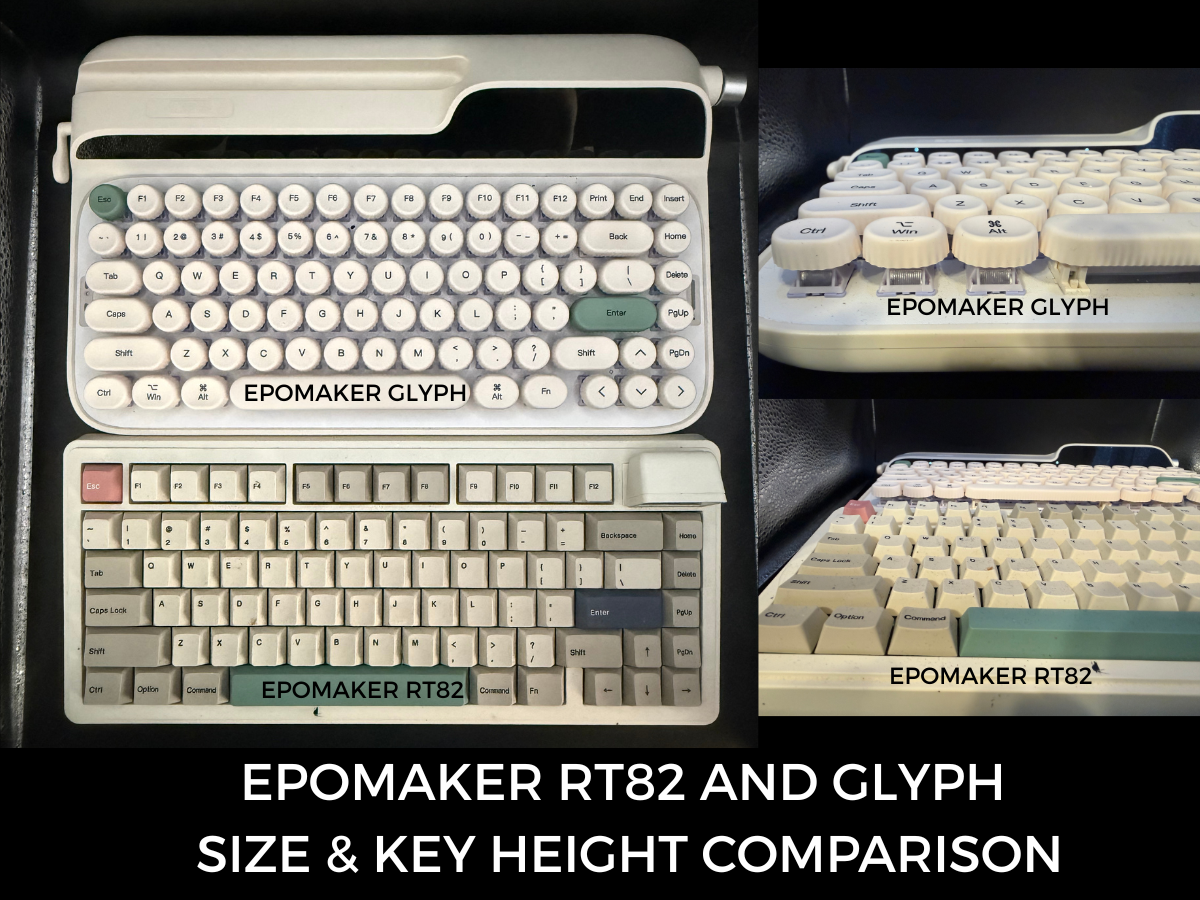
The Glyph has a retro look with a modern take. The lights and screens give you updated functionality while feeling like you are using an old-school typewriter.
The raised keys expose the underside to dust and snack crumbs, but they also make them easier to keep clean.
My husband has a bit more experience with typewriters than I do, and he agrees that using this reminds him of the ones he used as a kid. He really liked that the knob and levers maintain the typewriter-inspired look while having updated functions.
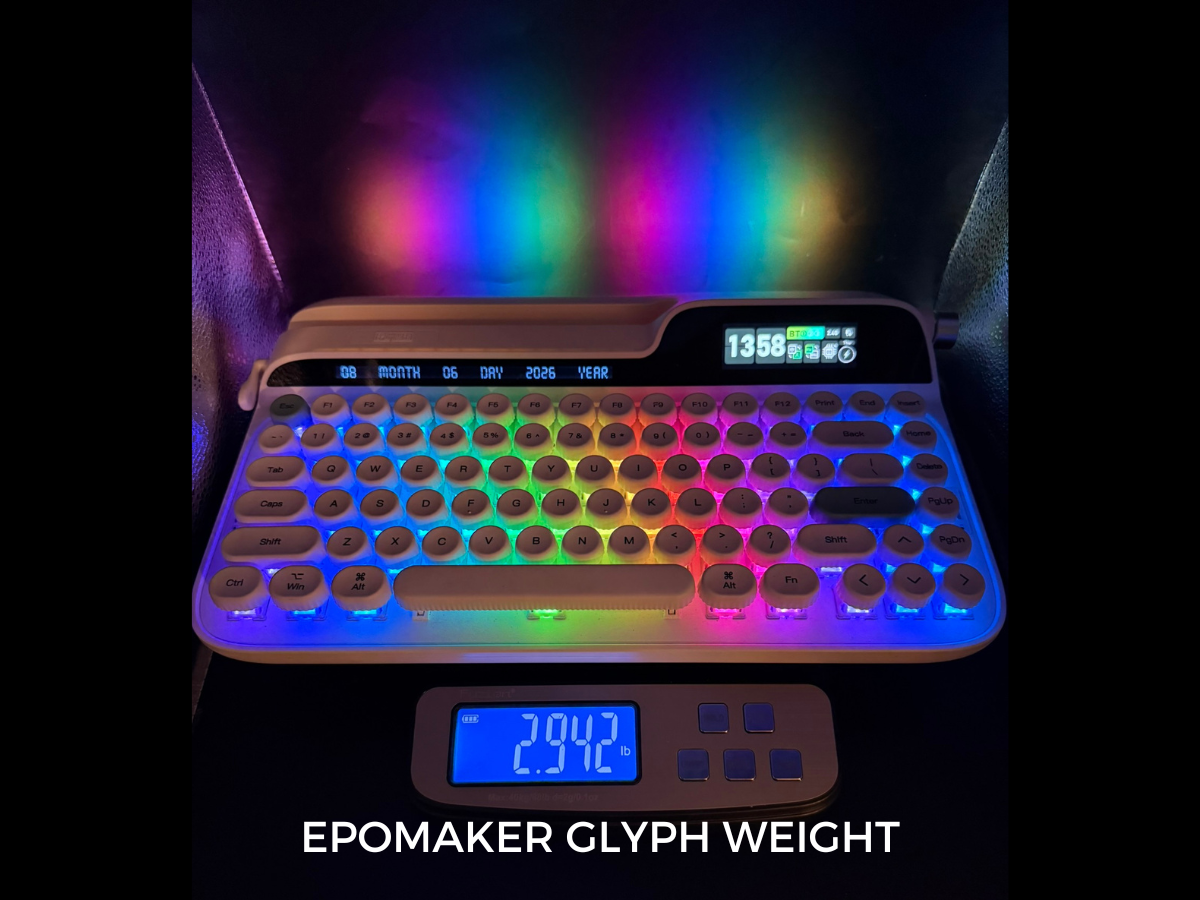
As far as the physical build quality, this has the feel of a $139 keyboard. While I don’t mind moving it around my desk, it’s not something I’m going to throw in my backpack either. It comes in at about 2.9 lbs.
Even though the case is ABS plastic, it still feels solid and appropriately premium for the price.
Return Lever, Display, and Rotary Knob

The screens are useful, and just like the TH80 keyboard, you can add GIFs and images. You can also create your own GIFs in the software and preview them before pushing them to the keyboard.
One thing I would change is the ability to edit the photos in the software or provide the dimensions of the screen in the documentation so users know what size images will look the best. I learned through my own research that images work best at 435 × 142 pixels.
What I really like about the Glyph is that you can customize the lights using the knob and screen. You can also do it with a set of keystrokes, if you can remember what they are.
It would be nice to change the date section and move the clock off military time, but those are minor things that don’t impact my experience as a user.
Lifting the return lever activates Enter, while pressing it down activates Backspace. It’s more of a neat feature than a practical one for me.
Typing Experience and Sound
The keys are smooth, soft, and give enough of a satisfying hit without alerting everyone in the room to your activities. The sound reminds me of soft pastels, if that makes sense. Not overly bright and clicky but more muted and relaxed.
The switches are Wisteria V2 and are rated at approximately 32.8 grams of actuation force, 45 grams of bottom-out force, and 3.6 millimeters of total travel. Translation: less pressure gets the job done.
The light actuation and rounded keys have caused a few accidental keystrokes, but with time, that can be overcome. It’s like writing with a new pen. You know how to write, but the feel of a pen you’ve never held can make it feel like a new experience, and you might not write as smoothly or as fast as you do with a pen you know. Same idea with the Glyph.
Rounded keys mean less surface area to aim and hit on target (I hear the Rogue Squadron from Star Wars: A New Hope in my head right now, “stay on target…stay on target…”).
Personally, I like the round keys because they force me to focus on what I’m doing.
Comfort and Ergonomics
If I were to give the Glyph a rating on comfort alone, I would give it a four out of five.
Because the keycaps sit higher than I’m used to, the Glyph feels best when I keep my wrists relaxed and my fingers properly curved (which is how my typing teacher, Mavis Beacon, told me to type when I was a kid).
The wrist support included with the keyboard helps with wrist placement, but it’s not a requirement. I find myself switching between using it and ditching it.
The typing angle is adjusted by removing the silicone feet and swapping them with the second included set.
When working for longer periods of time, I find that the Glyph is comfortable enough to work on without needing extended breaks.
Wireless Performance and Battery Life
Something that stands out to me is the ability to swap between devices and the nice built-in device slot at the top of the keyboard to accommodate them. I have my iPhone 16 Pro in a case and it still fits in the slot nicely.
The main screen shows you which Bluetooth device you are using (you have three to swap between), and all you need to remember is which one is 1 (FN + Q), 2 (FN + W), or 3 (FN + E). I jumped between my phone and MacBook Pro while writing this, and it worked well.
The wireless receiver is under the keyboard behind a metal plate. Press the marked area at the bottom of the plate, and it pops open so you can grab the receiver.
I’ve kept the keyboard on for the past two weeks with random usage, and the battery is still holding strong. Keep in mind that I generally leave the lighting off, which extends the battery life.
Software, RGB, and Customization
The Epomaker Hub is mostly user-friendly. This is where you can do more advanced programming like macros, key assignments, lighting effects, and adding your own GIFs and images.
I say “mostly user-friendly” because macros are kind of a pain. There is no explanation of how to record a macro, and it’s a lot of trial and error. I would like to see a tutorial section added here so that beginner users can learn and take advantage of this feature.
Epomaker Glyph Pros and Cons
No product is perfect, so here are my favorite things about the Glyph and some things that I would change or could do without.
Pros
- Design is both functional and decorative
- Smooth mechanical switches
- Hot-swappable switches
- Three connection options
- Bonus wrist rest
- Screens are useful and customizable
- Strong battery life
- Easy to switch between my devices
- Raised keycaps make it easier to clean
Cons
- Key height can be awkward at first
- Return lever feels more decorative than something I’d actually use
- No Mac keys to swap out the Windows-specific modifier keycaps
- Epomaker Hub would benefit from a tutorial section for new users
Who Should Buy the Epomaker Glyph?
The Glyph is most definitely for writers who want that typewriter feel but for their digital devices. It’s also great for anyone who goes for the more aesthetic look at their desk and wants their keyboard to complement it.
This keyboard would not be my first pick for competitive gamers. My son spent some time using the Glyph, and after a few minutes he agreed that it was a nice keyboard and felt good to type on, but it was not something he would use for gaming
He had two issues using the Glyph for gaming: the spacing between keys and the height. The round keycaps could be replaced with more traditional ones, but the keyboard’s overall height is harder to adjust.
Keep in mind that this is not a full-sized keyboard, so it’s lacking a number pad. If that is important to you, look for either a Bluetooth numpad or a full-sized keyboard.
Final Verdict
For $139, the Epomaker Glyph is one of the more expensive keyboards I’ve checked out, but it’s also one of my favorites. While not great for travel, it looks great on my desk, gives me an easy way to switch between my MacBook and my iPhone or iPad, and fits well in my workflow. The battery life and ease of updating the screen are bonuses that I can’t ignore either.
If you are a writer or typing enthusiast looking for a mechanical keyboard that looks cool and feels just as nice, I would give the Epomaker Glyph a try.
You can purchase the Epomaker Glyph for $139 from the Epomaker website.
Disclaimer: GeekDad received a sample to review.

Dakster Sullivan

Dakster Sullivan has a degree in Computer Engineering and Media Communications. They love discovering new books to read, tech to play with, and ways to express themselves. They have anxiety and depression and strive to educate others about these invisible illnesses.